Uygulama hakkında
Açıklama henüz dilinizde mevcut değil, bu yüzden İngilizce gösteriliyor.
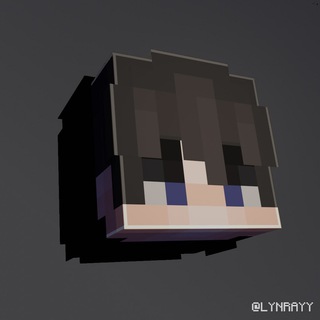
Every Minecraft player has a skin, but few have a good avatar for Telegram, Discord or a channel. HeadMC makes one from your skin in a couple of taps. 🧱
The bot's description says it directly: send a skin, set the pose and background with buttons, and launch with /start. The result is ready for a profile or a community banner.
What to send the bot
It takes a Minecraft skin. According to directory descriptions, you can send a nickname or the skin file uncompressed, meaning as a document and not as a photo.
The difference matters. Telegram compresses ordinary photos, and a pixel skin loses sharpness afterward. An uncompressed file keeps every little square.
Four commands are enough
- /start. Launches the bot.
- /menu. Settings and short news.
- /help. Help and a command list.
- /go. A "Let's go" button that starts generation.
The rest is done with buttons in the chat: choosing pose, style and background.
Pose, background and style decide it
The same character head looks different when you turn it or change the backdrop. For an avatar, a plain background and a pose with the whole face visible work best.
Telegram's round frame cuts the corners, so keep key details near the center. Try two or three poses and check the thumbnail, since that is how people will see the avatar in the chat list. 🎨
Making an avatar step by step
- Launch the bot with /start.
- Send a nickname or an uncompressed skin file.
- Pick a pose and background with the buttons.
- Receive the image and save it.
- Set it as the photo for a profile, channel or group.
About paid options
The project author offers subscriptions with extended features, including a tier that gives the right to sell works made in the bots. If you plan to use images commercially, say as a paid server logo, read the terms first.
This bot belongs to a family of several similar bots by the same author, and HeadMC itself is described as the earlier version that is being updated step by step. News appears in the project's channel.
Support and updates
Questions about the bot go to support, whose link is pinned in the author's channel. If the bot does not respond, restart it with /start and send the file again.
For someone else's skin, ask the owner's permission if you plan to publish the result as your own brand.
Where an avatar comes in handy
- Telegram profile. Your character's recognizable face instead of a random picture.
- Channel or server chat. One style for a player community.
- Other platforms. You can save the image and set it in a game chat or on a forum.
- Friends. Make a set of avatars for the whole team with the same background.
The same background and pose for everyone immediately creates a team feeling. If someone gets a new skin in the game, just send the updated file to the bot and get a fresh image in seconds.
Sıkça sorulan sorular
What do I send to HeadMC?▼
How do I choose a pose and background?▼
Is the bot free?▼
Can I use the result commercially?▼
Ortaklık verilerine göre